Demonstrate one product claim
Pair the loop with the section that describes the feature instead of showing a generic dashboard image.
Show exactly what the feature does without embedding a full tutorial. Frame the screen recording, choose the right moment, and export a loop that belongs to your page.
Choose your recording, select the exact moment, adjust the preset and export without leaving this guide. Your source video stays on this device.
Use a GIF when the motion is short, silent, and repeats naturally: a single click, transition, prompt result, or app interaction. Use MP4 instead when the clip is longer, needs audio, or file size matters more than automatic looping.
Try it with your recording →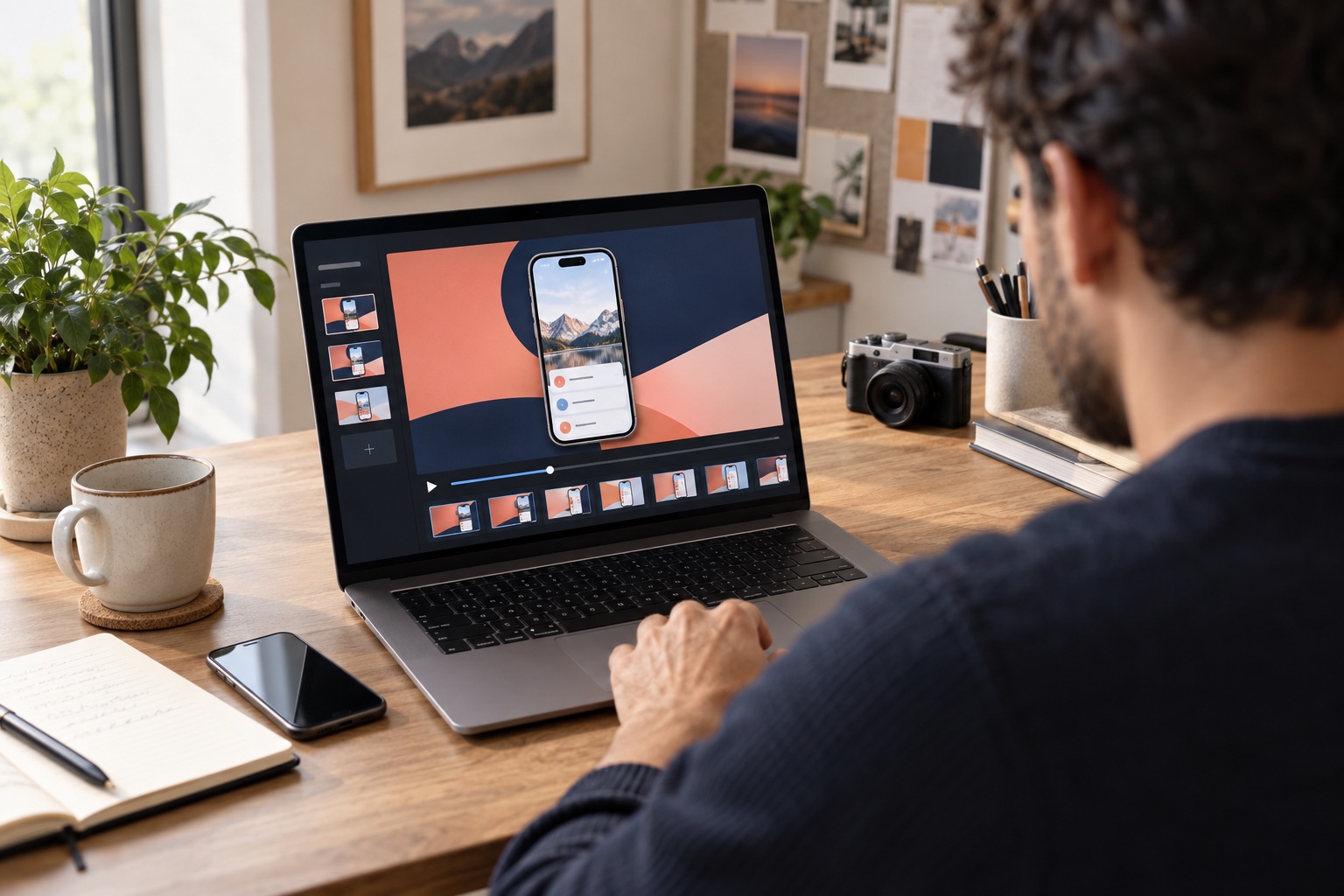
Use a focused app demo in a polished frame for feature pages, launch posts and product documentation.
Pair the loop with the section that describes the feature instead of showing a generic dashboard image.
Use your website colors so the recording feels integrated rather than pasted on.
Center and scale the screen while preserving important navigation and labels.
Giflane supports both, so you can use the format that fits the motion and page performance.
Write the product claim first, then record only the interaction that proves it.
Start close to the action and hold the result just long enough to understand it.
Enter a public website URL to extract a palette, or choose a custom color manually.
Balanced is a practical starting point; use Small file for faster-loading pages.
Add descriptive alt text, reserve the image dimensions, and place the visual near the matching copy.
These settings are a good starting point. Adjust them if your on-screen text is hard to read or the exported file is larger than you need.
Use GIF for a short silent loop. Use MP4 for longer motion, better compression, or playback control.
Yes. Enter a public URL to extract a palette, or use the custom color picker if the site blocks automated reading.
Keep it to one action, usually 3–10 seconds. Longer sequences are generally better as MP4.
No. Giflane previews and renders the source locally in your browser.